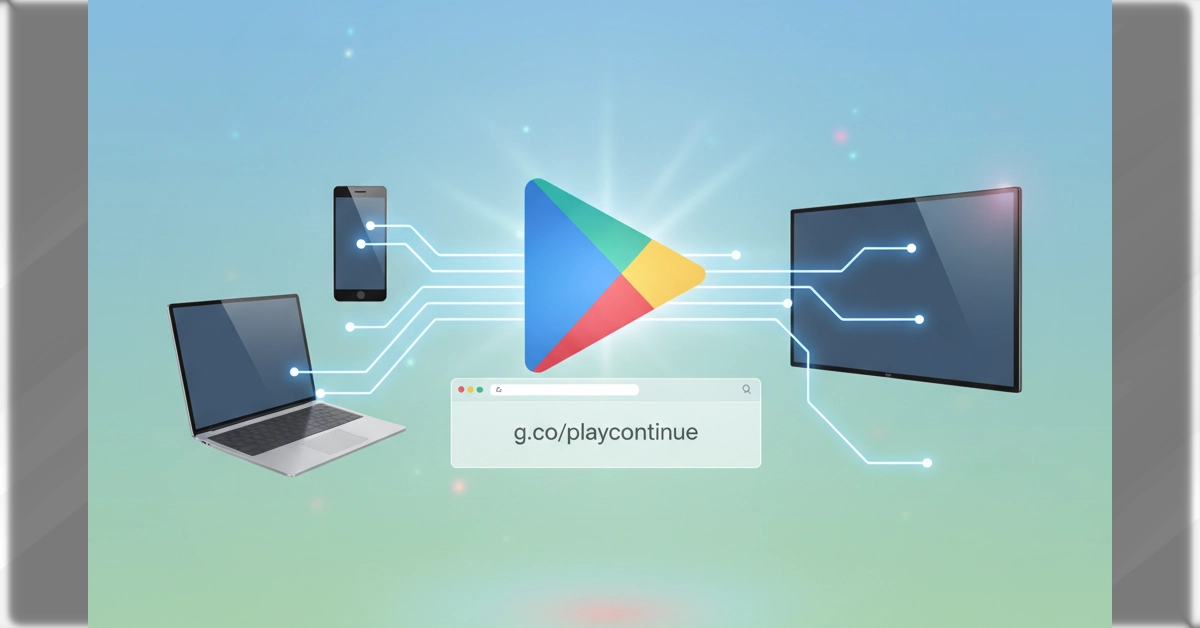
g.co/playcontinue is Google’s official redirect URL that serves two main functions: resuming media content across your devices (like YouTube videos, games, or podcasts) and confirming Google Play Store transactions. When you visit this link while signed into your Google Account, it automatically directs you to continue your activity or verify a pending purchase.
What Is g.co/playcontinue?
If you’ve stumbled across g.co/playcontinue, you’re probably wondering what it does and whether it’s legitimate. This shortened URL belongs to Google and redirects you to specific pages within the Google Play ecosystem.
The link serves different purposes depending on how you encountered it. Most commonly, it helps you resume content you started on one device and want to continue on another. It can also appear when completing a Google Play Store purchase or linking a new device to your account.
Think of it as Google’s way of creating a smooth experience between your phone, tablet, computer, and smart TV. No manual syncing required.
How g.co/playcontinue Works
The technology behind this URL relies on your Google Account to remember what you were doing. When you pause a YouTube video on your phone or exit a mobile game mid-level, Google’s system saves your progress automatically.
Later, when you type g.co/playcontinue into any browser where you’re signed in, Google recognizes your account and redirects you to exactly where you left off. This works through deep linking, which connects web URLs directly to specific content inside apps.
Your activity data syncs across devices in real-time. The system knows which device you’re currently using and adapts accordingly.
Common Reasons You’ll See This Link
Resuming Media Content
Google created this URL to address a common problem: over 90% of users start activities on one device and finish them on another. You might see g.co/playcontinue when:
- Watching YouTube videos across multiple screens
- Playing Google Play Games that support cloud saves
- Listening to Google Podcasts between your phone and computer
- Reading Google Play Books on different devices
Confirming Play Store Transactions
The link also redirects to Google Play Store payment pages. If you started buying an app or making an in-app purchase but didn’t complete it, g.co/playcontinue takes you back to confirm that transaction.
This happens when your payment gets interrupted or needs additional verification.
Linking New Devices
When setting up a new Android device or smart TV, you might be instructed to visit g.co/playcontinue to connect your Google Account. This associates the device with your existing subscriptions and purchased content.
Step-by-Step: Using g.co/playcontinue
On Your Phone or Tablet
- Open any web browser where you’re signed into your Google Account
- Type exactly: g.co/playcontinue (spelling matters)
- Press enter and wait for the automatic redirect
- You’ll land on the appropriate app or page to resume your content
On Your Computer
- Make sure you’re logged into your Google Account in Chrome or another browser
- Navigate to g.co/playcontinue in the address bar
- The page will detect what you were doing and take you there
On Smart TVs
Some Google TV devices display this URL during setup. In these cases:
- Use your phone or computer to visit the link
- Sign in with the same Google Account you want to use on the TV
- Follow any on-screen verification steps
Which Apps and Services Support This?
The feature currently works with several Google services:
- YouTube (pause and resume videos seamlessly)
- Google Play Movies & TV (now part of Google TV)
- Google Play Games (continue gameplay across devices)
- Google Play Books (pick up reading where you stopped)
- Google Podcasts (resume episodes mid-play)
As more developers adopt proper deep linking standards, this list continues to grow.
Adding Multiple Google Accounts
You can connect several Google Accounts to your device, which is useful if you have separate accounts for work and personal use.
To add another account:
- Open your device’s Settings app
- Tap Accounts, then Add account
- Select Google
- Follow the prompts to sign in
- Repeat these steps for each additional account
Once you’ve added multiple accounts, you can switch between them in Google Play apps by tapping your profile picture and selecting a different account from the dropdown.
Enabling Background Data for Play Store
To use g.co/playcontinue features properly, your device needs background data turned on. This allows apps to sync information and send notifications even when you’re not actively using them.
On most Android devices:
- Go to Settings
- Find Accounts or Users & Accounts
- Look for data sync or background data options
- Make sure it’s enabled for your Google Account
Some devices place this setting under Battery & Data Manager instead.
Is g.co/playcontinue Safe?
Yes, this is an official Google-owned URL. You can verify this by checking the domain: anything starting with “g.co” is a legitimate Google property.
Your continuation data stays protected within your Google Account. Content only resumes when you’re signed in on a trusted device. Third-party apps can’t access your activity without explicit permission.
If you’re concerned about privacy, you can clear your activity history anytime through your Google Account settings.
Troubleshooting Common Issues
The Link Doesn’t Redirect Properly
Make sure you’re signed into the correct Google Account in your browser. If you use multiple accounts, switch to the one where you were using the content originally.
Content Doesn’t Resume Where You Left Off
Check that you have the relevant app installed on your current device. The redirect works best when you have YouTube, Google Play Games, or other compatible apps already downloaded.
Smart TV Setup Problems
When a TV displays g.co/playcontinue during setup, use a separate device to visit the link rather than trying to enter it on the TV itself. This makes verification much easier.
The Technology Behind the Scenes
Google uses several systems to make this work:
Deep linking connects URLs to specific content inside apps, so you don’t just open YouTube—you open the exact video at the exact timestamp. Account sync tracks your activity across all devices where you’re signed in. Firebase Dynamic Links decide whether to open a browser, launch an app, or prompt you to download something.
These technologies work together automatically, requiring no setup from you.
Key Takeaways
g.co/playcontinue removes the hassle of manually finding where you left off across devices. Whether you’re switching from your phone to your tablet mid-video or confirming a Play Store purchase, this simple URL connects the dots.
The feature works automatically when you’re signed into your Google Account, supporting major services like YouTube, Google Play Games, and Google Podcasts. As long as your devices have background data enabled and you’re using compatible apps, the experience stays smooth.
If you encounter this link unexpectedly, don’t worry—it’s a legitimate Google tool designed to improve your cross-device experience.